Visual Studio Code is one of the most popular code editors in the world. Beginners and professionals use it. It is fast, lightweight, and easy to use. Many developers choose it for web development, app development, and scripting.
In this blog, you will learn how to download code on Visual Studio Code on Mac, step by step. The guide uses simple words and short sentences. It provides a clear explanation of everything. We will also cover other platforms.
Download Visual Studio Code for these systems:
Windows 10
Windows 7 (64-bit)
Mac
This helps you understand how VS Code works across systems.
What Is Visual Studio Code?
Visual Studio Code, often called VS Code, is a free code editor made by Microsoft. It supports many programming languages. Examples include HTML, CSS, JavaScript, Python, Java, and C++.
Read Also: How to Screenshot on MacBook Air M2?
VS Code runs on macOS, Windows, and Linux. It offers features like syntax highlighting, extensions, debugging, and Git support. These features help developers write clean and efficient code.
VS Code is not heavy software. It installs quickly. It also operates without issues on most systems. This makes it ideal for Mac users.
Why Use Visual Studio Code on a Mac?
Mac users prefer VS Code for many reasons. The interface is clean. The performance is fast. Updates are regular and stable.
VS Code works well with macOS tools. It supports Terminal integration. It also supports iCloud and file syncing. This makes coding easier.
Another benefit is customization. You can change themes, shortcuts, and extensions. This improves productivity.
Download Visual Studio Code for Mac
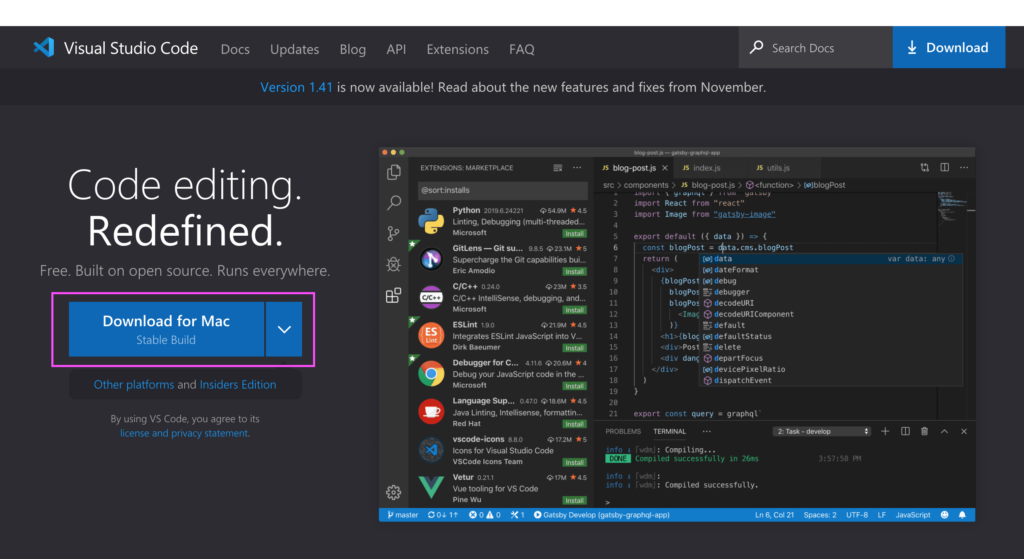
The first step is to install the editor. You must download Visual Studio Code for Mac from the official source. This ensures safety and performance.
After you download Visual Studio Code for Mac, the system provides a .zip file. This file contains the VS Code app.
The system extracts the file without manual input. The application is then moved to the Applications folder. This step is important for proper installation.
You can easily launch VS Code after installing it. Use Launchpad or Spotlight search.
Downloading Visual Studio Code for Mac is free. You don't need a license or account. Updates are also free.
How to Open Visual Studio Code on Mac?
After installation, you must open VS Code. Click on the VS Code icon. The welcome screen will appear.
The interface shows recent files and folders. We display options in a clear manner. New users can explore tutorials.
The editor is now ready for use.
How to Download Code on Visual Studio Code on Mac?
Downloading code in VS Code can mean different things. It can mean opening existing files. It can also mean cloning code from the internet. The explanation of both methods follows below.
1: Download Code by Opening a Folder
This is the easiest method. It is often used by beginners.
First, open Visual Studio Code. Click on File in the top menu. Select Open Folder. Choose the folder that contains your code.
VS Code loads the folder. The left panel shows all files. You can now edit the code.
You Must Also Like: Is the MacBook Air Good for Coding Boot Camp?
This method is useful for local projects. It works well for practice files.
2: Download Code Using Git Clone
Many developers download code from GitHub. VS Code supports this feature.
First, copy the repository link from GitHub. Open VS Code. Press Command + Shift + P. Type Git: Clone.
Paste the link. Choose a location on your Mac. The system downloads the code without manual input.
This method is fast and reliable. You need an internet connection.
Using Extensions to Download Code
Extensions add extra features. Some extensions help manage repositories. Others help download templates.
Open the Extensions tab. Search for GitHub or project tools. Install the extension. Follow the instructions.
Extensions are optional. But they improve workflow.
Understanding Files and Folders in VS Code
VS Code uses a simple folder system. Each folder stores one project. The system displays the files in a way that is easy to understand.
You can create new files. You can delete old ones. The system saves changes without user intervention.
This structure helps beginners stay organized.
Keyboard Shortcuts That Help on Mac
Shortcuts save time. VS Code supports many shortcuts on Mac.
Common shortcuts include:
Command + S to save
Command + Z to undo
Command + Shift + P to open the command palette
These shortcuts make coding faster.
Visual Studio Code Download for Windows 10
VS Code is not limited to Mac. Many users use Visual Studio Code to download for Windows 10. The Windows version offers similar features. The interface is almost the same. Files and extensions work in the same way.
Visual Studio Code download for Windows 10 is also free. It supports 32-bit and 64-bit systems. Developers can switch between Mac and Windows with minimal effort. Skills remain the same.
VS Code Download for Windows 7 64-bit
Some users still use older systems; VS Code supports them too. VS Code download for Windows 7 64-bit is available from Microsoft. We provide older versions for compatibility.
Features have some limitations. But they support basic coding. VS Code download for Windows 7 64-bit is useful for legacy machines and testing environments.
Why VS Code Works Across Platforms?
Developers build VS Code with cross-platform support. This means code written on a Mac can run on Windows. You can easily share files; Git helps to sync projects. No matter if you download Visual Studio Code for Mac or Windows 10, the experience is the same.
Common Problems and Simple Fixes
Sometimes VS Code may not open. You can fix this by restarting the Mac. If extensions do not install, check the internet connection. You should install updates at regular intervals.
You can solve permissions issues by moving VS Code to the Applications folder.
Tips for Beginners
Start with small projects. Learn basic shortcuts. Use built-in tutorials. Do not install too many extensions. Keep the editor simple. Practice daily. This improves confidence.
Final Thoughts
Learning how to download code on Visual Studio Code on a Mac is simple. The process is straightforward and accessible for beginners. VS Code offers powerful tools without complexity.
You can easily download Visual Studio Code for Mac. Start coding in minutes! You can download Visual Studio Code for Windows 10 and Windows 7 (64-bit) if needed.
VS Code supports learning, growth, and productivity. With simple steps and regular practice, anyone can master it. Visual Studio Code is a smart choice for developers on any platform.