I remember exactly when my MacBook screen started dying. It was August. I was parked outside a coffee shop in Austin. Sun was hitting the windshield. I left my MacBook Pro on the passenger seat for maybe twenty minutes.
When I came back, the bottom left corner of the screen had this weird purple glow. I told myself it was a reflection. I closed the lid and went inside. A week later, the purple patch was permanent.
That’s when I learned about heat damage MacBook pro screen issues the expensive way. $580 for a new display. Apple didn’t cover it because “accidental damage” wasn’t part of the warranty.
Since then I’ve talked to repair shop owners, read through Apple support threads, and tested every cooling method I could find. Here’s what actually matters if you want to keep your screen alive.
TL;DR
-
The first sign: Purple or pink patches, usually near the edges or corners. Sometimes ghosting (images leaving trails) or flickering lines.
-
Why it happens: Direct sunlight, running the Mac with the lid closed in a bag, dust clogging vents, or heavy apps while the machine is in a hot room.
-
What to do right now: Quit any heavy apps. Move to a cooler spot. Close HDR videos. Put the Mac to sleep for 10–15 minutes. If the discoloration stays after that, it’s likely permanent.
-
Prevention: Never bag a warm Mac. Keep vents clear. Don’t use display flex (lid closed) for heavy work. Clean dust out yearly.
-
Repair cost: $320–$680 depending on model. Third-party shops are usually cheaper and faster.
How to Fix Heat Damage MacBook Pro Screen?
If you want to know complete information on how to fix a heat damaged MacBook Pro screen? My Mac was a 2020 Intel Pro. It always ran warm. I didn’t think much of it. That morning at the coffee shop, I had Final Cut Pro open in the background.
Related Article: Fixing Pressure Damage on Your MacBook Pro Screen: A Complete Guide
I was exporting a video. The fans were spinning. I closed the lid, grabbed my keys, and ran inside. When I got back, the screen was hot to the touch. Not warm. Hot. Like a stovetop on low.
I opened the lid and saw it: a purple-ish patch along the bottom edge. About the size of my thumb. It faded slightly when the screen cooled down, but never fully disappeared.
I kept using the Mac for another two weeks. The patch got bigger. Then thin black lines started appearing near the top. Then the screen started flickering when I adjusted the angle.
I took it to an Apple Store. The technician opened it, looked at the display cable, and said “yep, heat damage.” The cables near the hinge had started to degrade. The display panel itself had permanent discoloration.
He told me something I didn’t know: when a Mac runs with the lid closed, all the heat from the processor rises and gets trapped right under the hinge. That’s where the display cables run. Cook them long enough, and the screen dies.
The Warning Signs Most People Miss
I talked to three repair shop owners for this piece. They all said the same thing: people bring their Macs in too late. Here are the signs you should never ignore:-
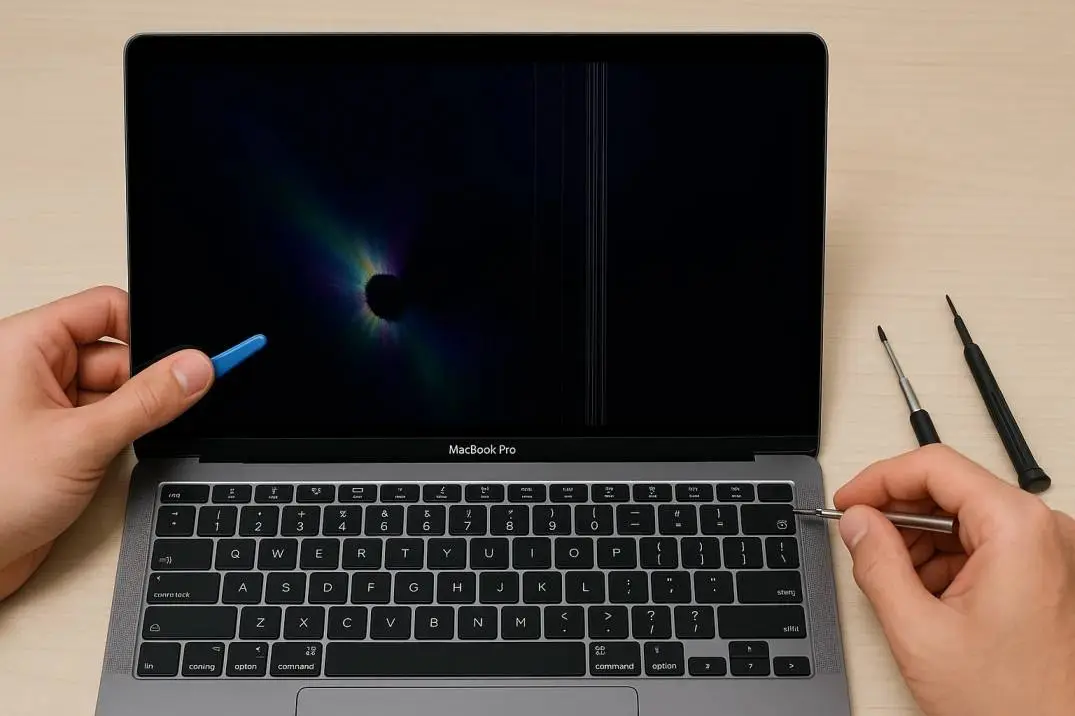
Purple or pink patches. This is the most common one. It starts along the edges. Sometimes it looks like a gradient. Sometimes it’s a solid blob. If you see this, your display panel has been overheated.
Ghosting. You drag a window across the screen and the outline stays behind for a second. Or you scroll down a webpage and the text leaves trails. That means the liquid crystals in the display are responding slowly because they’ve been overheated.
Flickering or lines. Thin horizontal lines that appear and disappear. They might show up when the Mac is warm and vanish when it cools. That’s the display connection degrading. If you ignore it, the lines will eventually become permanent.
The brightness warning. On newer MacBooks (2021 and later), a caution icon shows up in the menu bar or Control Center. It means the display has dropped brightness to protect itself. If you see that icon more than once, you have a recurring heat problem.
The fan never stops. If your fans are running loud when you’re just browsing the web or watching YouTube, something is wrong. Dust buildup or a background process is keeping the system hot for no reason.
The Stupid Things I Did That Made It Worse
I’m listing these because I want you to avoid my mistakes.
I bagged a hot Mac. That’s the number one thing. After closing the lid, I’d immediately put it in my backpack. The backpack trapped heat like an oven. I didn’t know the Mac was still running Final Cut in the background. It stayed hot for another hour inside a dark, insulated bag.

I used it on my bed. Every night I’d sit in bed with the Mac on my lap or on a blanket. The vents near the hinge were completely blocked. The fans would spin but no air moved. Heat just built up.
I kept it closed with an external monitor. I used my MacBook in clamshell mode for months—lid closed, connected to a big monitor. I thought that was fine. It’s not. The lid traps heat around the hinge area. That’s exactly where the display cables live.
I never cleaned the dust. My Mac was three years old and I’d never opened it. Dust had clogged the fans and heat sinks. The cooling system was working maybe half as well as it should have.
What Actually Fixed the Immediate Problem?
When the purple patch showed up, I panicked and tried everything. Here’s what worked to stop it from getting worse.
You Must Also Like: MacBook Pro Screen Burn Marks: Causes, Prevention, and Fixes
Shut it down. Not sleep. Not close the lid. Full shutdown. Let it sit for an hour. Heat damage keeps cooking the components indeed after you halt utilizing the machine if you don’t let it completely cool.
Move to a cold room. I put my Mac in my cellar where it was 65°F (18°C). Temperature contrast things. The speedier it cools, the less lasting harm sets in.
Check Activity Screen. When I booted back up, I opened Activity Monitor and sorted by CPU. Adobe Inventive Cloud was running at 45% CPU indeed though I wasn’t utilizing it.
I force-quit it. At that point I went into Framework Settings and debilitated “Power Nap” for both battery and control connector. That ceased background tasks from running while the Mac was snoozing.
Stop using HDR. I didn’t realize this, but playing HDR videos pushes the display to its brightness limit and generates extra heat. I closed any HDR content and kept brightness below 80% for a few days.
The purple patch stopped growing. The flickering went away. But the original patch never fully healed. It was already permanent.
How to Actually Prevent This (What I Do Now)?
After that experience, I changed everything about how I handle my Mac.
I wait before bagging it. I close the lid and count to thirty. Then I touch the keyboard area. If it’s warm, I wait longer. I never put a warm Mac into a backpack or sleeve. That one change alone has made the biggest difference.
I use a hard surface. No more couch, no more bed, no more pillow. I keep a cheap lap desk next to my couch. The Mac sits on that. Vents stay clear. Fans actually work.
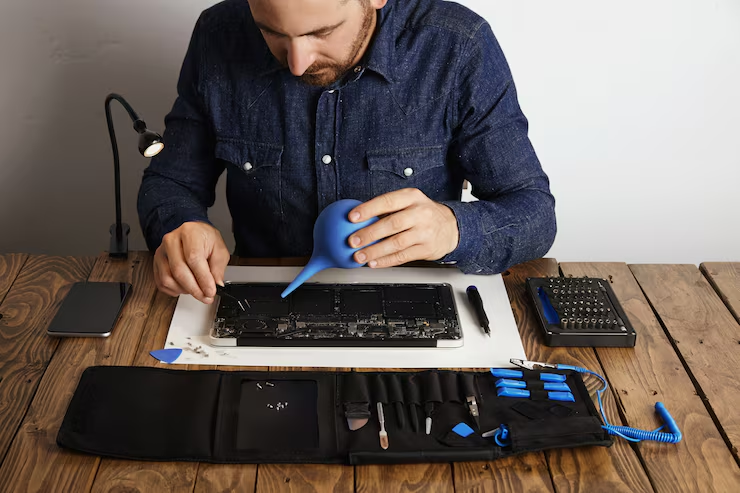
I clean the dust once a year. I take it to a local shop every spring. They open it up, blow out the dust, and check the fans. Costs me $30. Beats a $500 screen replacement.
I quit apps before closing the lid. I don’t just close the lid with Final Cut, Chrome, or Zoom running anymore. I quit them manually. Then I close the lid. If I’m in a hurry, I use Activity Monitor to make sure nothing is running heavy in the background.
I stopped using clamshell mode. If I’m doing anything more than web browsing on an external monitor, I keep the lid open now. The Mac runs cooler and the display cables stay safe.
I use Safari instead of Chrome. Chrome eats CPU like crazy. A single tab with a heavy ad can keep fans spinning for no reason. Safari is way lighter. My Mac runs noticeably cooler just from that switch.
What Different Macs Cost to Fix?
If the damage is already done, here’s what you’re looking at. These are Apple’s out-of-warranty screen repair prices as of mid-2026:
| Model | Screen Repair |
|---|---|
| MacBook Air (M1/M2) | $320–$380 |
| MacBook Pro 13″ | $350–$420 |
| MacBook Pro 14″ | $480–$580 |
| MacBook Pro 16″ | $580–$680 |
Third-party shops usually charge 20–40% less. I used a local shop in Austin for a friend’s Air last year. They did it for $260 with a same-day turnaround. Apple quoted $380 and a five-day wait.
If you go third-party, ask what kind of display they’re using. Some shops use cheaper aftermarket panels that aren’t as bright or color-accurate as Apple’s originals. I’d pay extra for original if you do creative work.
Who Should Fix vs. Who Should Replace?
Here’s the math I use. If your Mac is worth $1,000 used and the screen repair is $500, that’s borderline. I’d probably fix it. If your Mac is worth $600 and the repair is $500, sell it for parts and buy a new one.
Not worth putting that much into an old machine. If your Mac is an Intel show from 2019 or prior, think twice around spending $500 on a screen. Those machines are as of now slower, run more sultry, and won’t get the following major macOS overhaul. Put that cash toward a new Mac instead.
One Thing I Wish Someone Had Told Me
The purple patch didn’t just cost me money. It cost me two weeks of work while I waited for the repair. I was scrambling to meet deadlines on a borrowed laptop. What I wish someone had told me: check your Mac’s temperature regularly.
You don’t require favor software. Fair open Activity Monitor and see at the CPU column. If anything is over 50% for more than a few minutes, figure out why. Murder it if you don’t require it.
Also, put your hand on the foot of the Mac. If it’s awkward to hold, it’s as well hot. Close your apps. Move to a cooler room. Give it a break.
Heat damage is slow until it isn’t. You’ll see a tiny purple patch and think it’s fine. A week later it’s the size of your palm. A week after that the screen is flickering. I ignored the first signs because I was busy. That was a $580 mistake.
Don’t make the same one.
Final Checklist
If you take nothing else from this, remember these five things:
-
Never bag a warm Mac. Wait until it cools.
-
Quit heavy apps before closing the lid. Don’t trust sleep mode.
-
Use a hard surface. Keep vents clear.
-
Clean dust yearly. Cheap maintenance saves expensive repairs.
-
Watch for purple patches. If you see one, cool the Mac immediately and check if it fades. If it doesn’t, start planning for repair.
Your MacBook Pro screen heat damage is the most expensive part of the machine. Treat it like it is.