I first noticed the update when my Chrome AI extension for mobile blinked a new icon in the address bar. It wasn’t a small tweak. Google rolled out a much deeper AI Mode that works right inside Chrome’s main search spot. No separate app. No extra menus.
This matters because many people still type questions into Google Search and expect smart, helpful answers. When AI Mode isn’t showing up, users get confused. They ask, How to turn on AI Mode in Google Search?
This article answers that. We also cover real pros and cons and touch on other useful tech tips like free AI extension for Chrome and even how to use your iPhone for fun extras like How to turn iPhone into mic for Apple Music Sing.
Let’s break this down in real terms.
Why AI Mode in Chrome Matters — And What Changed?
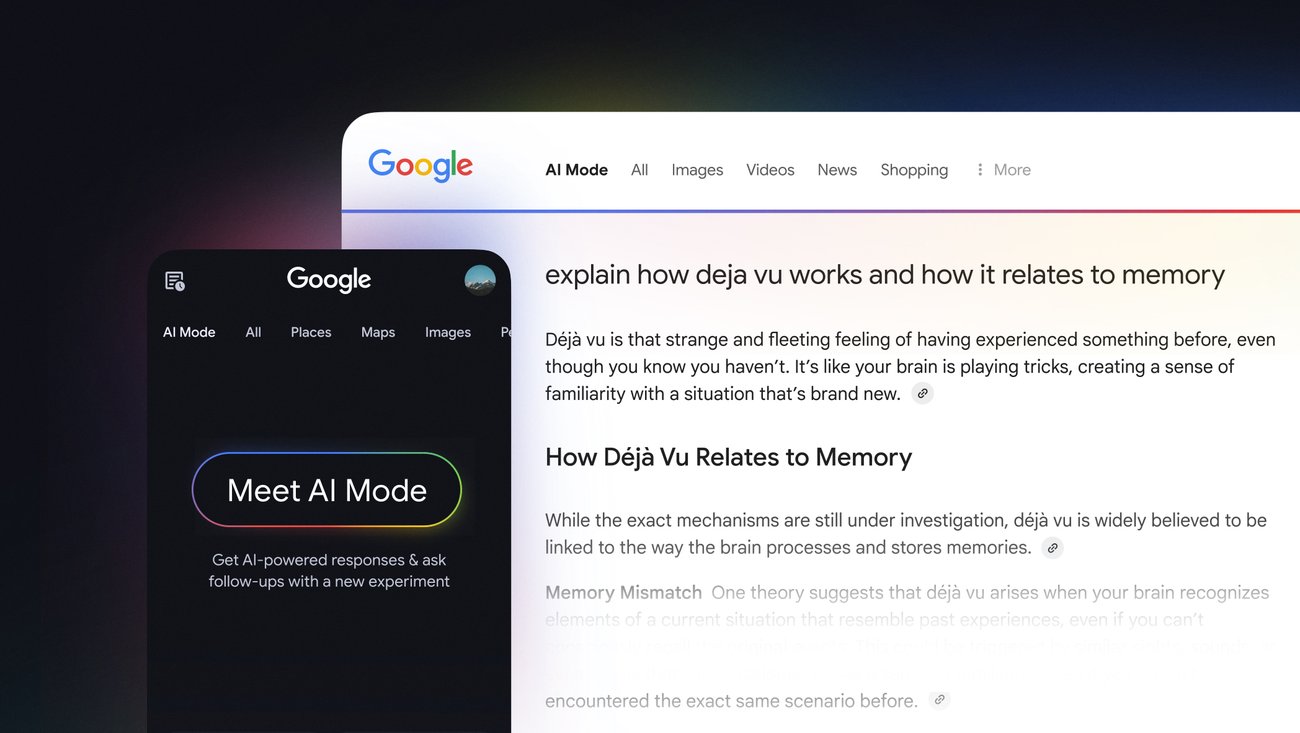
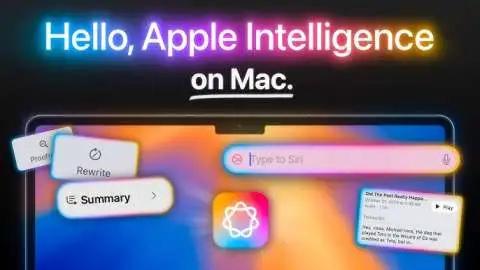
Google’s AI Mode now sits in the Chrome address bar. That is huge. Before, you had to hunt for it inside menus or use the separate Search Generative Experience. Now it’s active where most people type their web searches. You can ask plain questions like:
Read Also: Apple 2025 MacBook Air M4 Review: Is it Still the Best Laptop for AI?
-
“What’s the fastest route home?”
-
“Summarize this article”
-
“Rewrite this email”
and AI Mode starts helping instantly.
This change is big for mobile users. I use the Chrome AI extension for mobile daily. When it works right, it feels like a smart helper instead of a dumb search box.
But it’s not perfect for everyone yet.
Why Your AI Mode Might Not Be Showing?
People often search for How to turn on AI Mode in Google Search because their browser doesn’t show the feature. There are a few common reasons:
1. Your Chrome Version is Old
AI Mode doesn’t show up if you’re running an outdated version. Both Android and iOS need the latest Chrome update.
2. The Feature is Rolling Out Gradually
Google often releases features in batches. Even if your Chrome is updated, the AI Mode might not be live in your region yet.
3. You’re Not Logged Into a Google Account
Some AI features require sign‑in. If you use Chrome without a Google account, it may not appear.
How to Turn On AI Mode in Google Search (Step‑by‑Step)?
Here’s the cleanest way I’ve found to get AI Mode when it’s not showing:
-
Open Chrome.
-
Tap the three dots (menu).
-
Go to Settings > About Chrome.
-
Update to the newest version if available.
-
Close and reopen Chrome.
-
Make sure you are signed into your Google account.
-
Type a question in the address bar.
If AI Mode is available, a prompt should appear. It might say something like, “Ask with AI.” If it still doesn’t show, try a different network or VPN. Google sometimes rolls features out by region first.
Real World Experience: What I Like?
Here’s what I noticed in daily use:
-
Speed: AI Mode answers are fast, often faster than traditional search.
-
Context Awareness: It remembers what I asked earlier in the same session.
-
Actionable Tips: It gives clear steps (like a mini assistant).
For example, I asked it how to improve my morning routine. Instead of just giving a list, it suggested actions based on time available — as if it understood my day.
You Must Also Like: M5 iMac 2026 Release Date, Price, Specs & Features Leaks
That’s not just word salad. It’s actually practical.
Real World Issues: What’s Still Rough?
Nothing is perfect, especially new tech. Here are honest limitations I found:
Accuracy Can Vary: Sometimes responses are too general or slightly off. AI Mode isn’t perfect at niche topics. If I ask something very technical, it sometimes simplifies too much.
Not Always Useful for Quick Facts: For simple answers, like “Who won X game?”, regular search wins. AI Mode sometimes takes longer to generate a response than a quick link would.
Availability Isn’t Universal Yet: As mentioned above, many users still see nothing. Right now, AI Mode in Chrome feels like a phased rollout.
Free AI Extension for Chrome — Should You Install One?

Since not everyone gets the native AI Mode right away, many people ask about a free AI extension for Chrome. There are a few popular ones that can help.
These extensions add AI features directly to your browser. I tested a couple of widely used free extensions, and here’s what I found.
Pros:-
-
Immediate AI help even if Chrome’s native mode isn’t showing.
-
Clipboard tools, Grammarly‑like writing help, and query rewrite suggestions.
-
Often zero cost.
Cons:-
-
Not always as smooth or fast as Google’s built‑in mode.
-
Some extensions ask for full browsing access (privacy risk if you don’t trust them).
-
Results may feel less accurate than Google’s AI.
If I want quick writing help or grammar fixes, a free AI extension for Chrome is great. If I want deep answers and context, the native AI Mode feels more solid — when it’s available.
Best AI Extension for Chrome — How to Choose?
There are hundreds of Chrome extensions with “AI” in their name. That can be confusing. Here’s how to decide:
1. Check Privacy
Read the permissions. If an extension asks to read and write all your data on websites, be cautious. That’s a red flag unless you trust the developer.
2. Consider Your Goals
-
Writing help: Some extensions focus only on grammar and tone.
-
Research: Others pull definitions or summaries from the web.
-
Chat assistants: These try to emulate ChatGPT‑like conversations.
For general help, I prefer extensions that stay slim and focused. Big bloated ones often slow the browser.
3. Look at Ratings and Reviews
Don’t pick an extension with thousands of installs and low reviews. That usually means users ran into problems.
What AI Chrome Means for Mobile Users?
Mobile web browsing is different from desktop. Phones have less screen space and slower input. Stuff that helps on desktop doesn’t always help on mobile. A Chrome AI extension for mobile can make searching easier because it:
-
Helps with longer questions without typing the full thing.
-
Summarizes articles so you don’t scroll forever.
-
Saves time when multitasking.
When AI Mode works natively in the mobile address bar, the whole experience feels smoother. You’re not bouncing between apps. But I’ve seen two pain points:
-
Keyboard crowding the screen — sometimes AI responses overlap poorly with where you type.
-
Lag on older phones — some responses take longer on older hardware.
Still, the convenience is worth it for most people.
How to Enable AI Mode in Google Chrome Android?
Since readers here are into smart phone features, here’s a fun bonus tech tip: How to enable AI Mode in Google Chrome? It’s not related to AI Mode, but it’s a cool practical trick.
Go to the mic icon. Follow the prompts. Your iPhone becomes a wireless vocal mic. That means you can sing along and use the phone as your voice input. Many friends tell me this turns casual karaoke into legit fun.
Practical Advice: Avoid Poor AI Purchases
People often pay for premium AI tools thinking they’re better. Here’s what I learned from real use:
Don’t Pay for Every Extension
Most free ones do fine for basic tasks. A paid AI extension typically only helps if you need heavy rewriting, brainstorming, or expert research.
Invest in a Good Browser First
Older phones and browsers slow everything down. Updating your device or browser makes more difference than any paid add‑on.
Test Before Buying
If an extension has a free trial, use it. Spend a day or two with it. If it feels clunky or unnecessary, cancel it. Trustworthy tools prove value quickly in real use.
Which Users Benefit Most From AI Mode in Chrome
Let’s be honest about who gets the biggest payoff:
Ideal Users:-
-
People who ask complex questions often.
-
Students and researchers who need summaries.
-
Writers who want suggestions while composing online.
Less Ideal Users:-
-
People who only need quick real‑time facts.
-
Users with very old devices.
-
Those who don’t search much at all.
AI Mode helps, but it’s not life‑changing for everyone.
A Final Practical Tip: Make AI Mode Work for You
If your AI Mode isn’t showing:
-
Update Chrome.
-
Try logging in with your main Google account.
-
Switch regions or use a different network.
-
Use a trusted free AI extension as a stopgap.
Keep watching the address bar after updates. Many users report that once the feature appears, it stays.
Your Takeaway
Google’s full AI Mode inside Chrome’s address bar is a big step forward. It brings smart suggestions to where most searches start. It can answer questions, summarize content, and make browsing feel helpful.
But it’s also in progress. Not everyone has it yet. And even when they do, it doesn’t replace all needs. That’s why a balanced setup — native AI Mode when available + good free AI extension for Chrome when needed — feels smart.
If you follow the tips above, you’ll get the most out of it without frustration. And if you bump into How to turn on AI Mode in Google Search problems, now you have clear, practical steps to fix them.